Shapeoko vs X-Carve: Detailed Comparison to Choose Your Best CNC Router
The shapeoko vs x-carve debate comes down to stronger construction and better specs versus integrated features and ease of use. Shapeoko offers thicker sheet metal and more rigid V-wheels for greater stiffness and stability. X-Carve, especially the Pro model, delivers faster assembly and built-in dust collection that cuts upgrade costs significantly. Start by considering your priorities: Shapeoko’s mechanical toughness suits heavy-duty tasks, while X-Carve’s ready-to-go setup saves time and extra purchases.
Key Takeaways
- Shapeoko 4 features 30% thicker sheet metal, boosting machine rigidity compared to the X-Carve.
- Shapeoko’s new V-wheels are about 40% stiffer than those on the X-Carve, improving cutting precision.
- The base Shapeoko 4 XXL costs roughly $2300, about $300 less than the fully loaded X-Carve kit.
- X-Carve Pro assembles in 4-6 hours, faster than Shapeoko 5 Pro which takes 8-12 hours.
- Integrated dust collection on the X-Carve Pro can save around $840 versus aftermarket solutions for Shapeoko.
- Shapeoko offers three machine sizes (standard, XL, XXL), while X-Carve only comes in a single 1000mm size.
Shapeoko vs X-Carve: Which CNC Router Should You Choose?
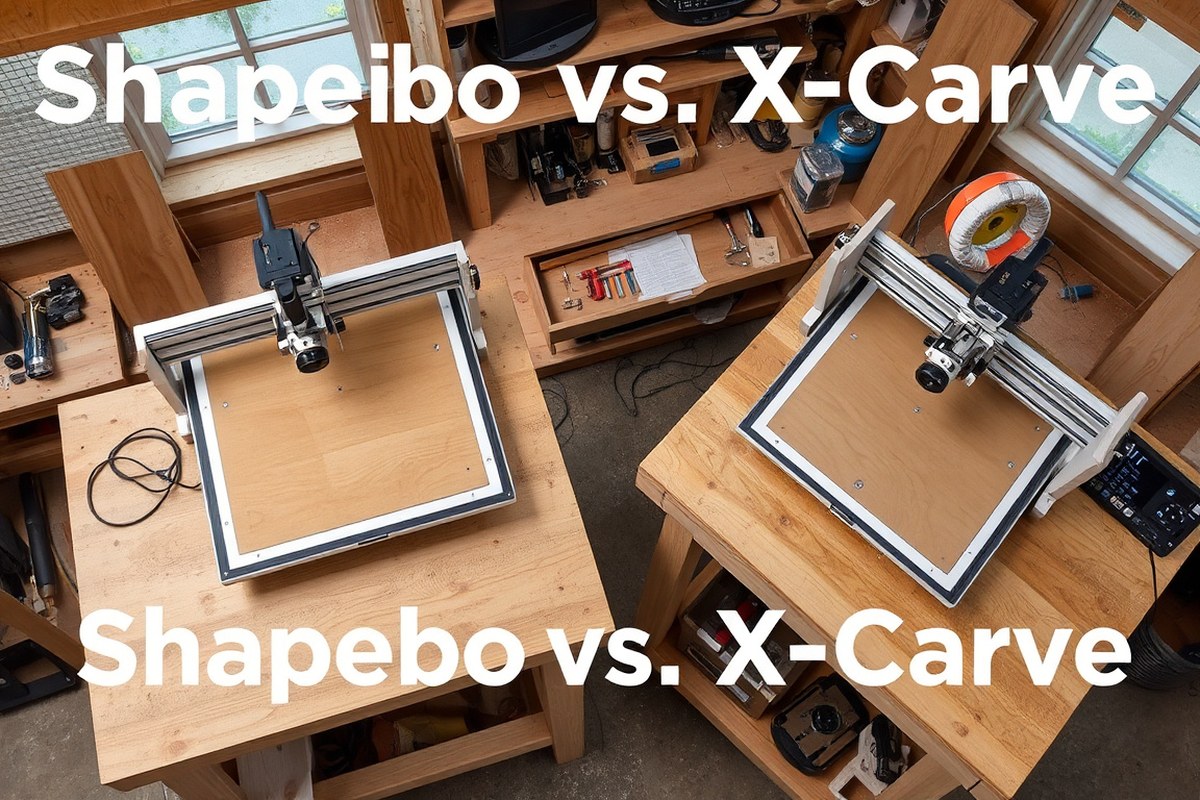
The Shapeoko 4 offers more size options than the X-Carve, available in standard (17.5″x17.5″), XL (33″x17.5″), and XXL (33″x33″) models, while the X-Carve is limited to a single 29.5″x29.5″ cutting area. This variety makes the Shapeoko 4 better suited for users with specific workspace or project-size needs. Choosing between these three sizes gives you greater flexibility for a precise fit in your projects or space, a feature not offered by the X-Carve.
From a budget perspective, the Shapeoko 4 generally provides better value for its price. Even after adding about $500 in upgrades to the X-Carve, the Shapeoko 4’s specifications tend to outperform it. The Shapeoko 4’s frame is built with 85×55 mm aluminum extrusion that is thicker and stiffer than the X-Carve’s 40×40 mm Makerslide aluminum frame. This increases cutting speed and stability, and users often notice faster, cleaner cuts with the Shapeoko.
The X-Carve Pro, a newer and much pricier machine at $7,495, targets small business users and includes integrated dust collection and a polished finish, which the Shapeoko 4 lacks. The Shapeoko 4, on the other hand, shines in cutting speed, software depth, and overall build quality. The latter also runs on Carbide 3D’s ecosystem, which integrates machine, software, and training materials, benefitting users who want a complete package.
Regarding router options, the standard X-Carve comes with a DeWalt 611 router running between 16,000 and 25,000 RPM. The Shapeoko 4 XXL ships with the Carbide Compact Router, adjustable between 12,000 and 30,000 RPM, allowing more versatility in materials and speeds. This difference impacts what you can cut efficiently, with Shapeoko 4 handling a wider range of tasks at various speeds. However, the X-Carve Pro includes a 2HP VFD spindle pre-programmed for easy setup, aimed at more demanding small business applications.
Assembly and initial setup lean slightly toward the Shapeoko 4; many find it faster and easier to put together compared to the X-Carve, despite Inventables’ claim that the X-Carve is the easiest CNC machine. In terms of software, both machines come with their own packages, but Carbide Motion for the Shapeoko is known for a deeper feature set, supporting more advanced operations sooner.
Choose the Shapeoko 4 if you need varied size options, a stiffer frame, faster cutting, and a more complete ecosystem at a moderate price point. Opt for the X-Carve only if you prefer a larger, fixed size bed near 30″x30″, want a machine with an established community focused on easier-to-use software, or are interested in the Pro model’s dust collection and premium finish, accepting the higher cost.
For most hobbyists and small shops aiming to balance cost with performance, the Shapeoko 4 is usually the better overall machine. The X-Carve’s limited size and less rigid frame limit its appeal, though its Pro version has unique features suited to some business users who prioritize those benefits over price. Matching your project size, budget, and desire for upgrades to these machines will help you decide the right CNC router for your workshop.
Core Mechanical Differences Affecting Performance

The frame and mechanical components of a CNC router directly influence its rigidity, stability, and cutting precision. Shapeoko 4 features a thicker, more strong aluminum extrusion frame with sheet metal parts about 30% thicker than those on the X-Carve. This extra thickness improve stability and reduces vibrations, particularly important when cutting tougher materials like aluminum. The rigidity of the Shapeoko 4 frame helps maintain accuracy even during deeper cuts, allowing it to handle a 5 times deeper cut in aluminum than the X-Carve without sacrificing precision.
In contrast, the X-Carve use lighter aluminum extrusion with thinner sheet metal and relies more on MDF parts in some nut and fastener interfaces. This setup can result in increased flex and vibration under heavy loads, limiting its cutting depth and quality on denser materials. While both machines use V-wheel linear motion systems that ride on aluminum extrusions, the Shapeoko’s are generally heavier duty, contributing further to its steadiness.
Belt drive systems also play a critical role in the machines’ mechanical performance. Shapeoko 4 uses wider 15mm belts on the X and Y axes, significantly stiffer and less prone to stretch than the X-Carve’s 6mm belts. Even the upgraded X-Carve belts max at 9mm, which still does not match Shapeoko’s rigidity. In the Z-axis, Shapeoko 4 employs a lead screw drive, which offers more precise vertical movement than the X-Carve’s belt drive all across its axes. This translates into better repeatability and finer surface finishes on cuts.
| Aspect | Shapeoko 4 (XXL) | X-Carve (1000 mm Fully Loaded) |
|---|---|---|
| Frame Material Thickness | Aluminum extrusion with sheet metal ~30% thicker | Aluminum extrusion with thinner sheet metal |
| Belt Width | 15 mm wide belts on X and Y axes | 6 mm belts standard, up to 9 mm upgraded |
| Drive System | Belt drive on X and Y, lead screw on Z | Belt drive on X, Y, and Z |
| Linear Motion Type | Heavy-duty V-wheels on aluminum extrusion | V-wheels on aluminum extrusion |
| Cutting Precision Impact | Higher rigidity allows deeper, more precise cuts especially in metal | Less stiffness limits depth and finish quality on harder materials |
The use of lead screws on the Shapeoko 4’s Z-axis also minimizes backlash compared to the X-Carve’s belt-driven Z, improving vertical precision during cutting tasks. This mechanical setup makes Shapeoko a more suitable choice for projects requiring tighter tolerances or when working with metals. Vibration reduction on the Shapeoko frame and belt system contributes to less tool deflection, which improves cut quality and tool life.
Always tighten and properly tension the belts on either machine before starting a project to avoid missed steps and inconsistent cutting depths.
Comparing Cutting Area and Machine Footprint Options
Both Shapeoko and X-Carve CNC routers offer several size options, but the Shapeoko line generally provides larger cutting areas and more customization flexibility. Choosing the right cutting area matters because it determines the maximum size of your projects and how much space the machine occupies in your workshop. For hobbyists or small shops working on sizable pieces like 4-foot signs or sheet goods, a larger bed helps prevent frustration and additional expenses later on.
The Shapeoko 5 Pro comes in 2×2, 4×2, and 4×4 foot configurations, with the 4×4 model offering around 2,304 square inches of usable cutting area. In comparison, the X-Carve Pro is available primarily in 4×2 and 4×4 sizes but its effective cutting envelope is about half that of the 4×4 Shapeoko, at roughly 1,152 square inches for the 4×2 model. A key factor is that these numbers refer to the usable work area inside the machine, accounting for clamps and fixtures, not just the total machine footprint.
| Model | Cutting Area (inches) | Approximate Footprint (inches) | Notes |
|---|---|---|---|
| Shapeoko 5 Pro 4×4 | 48 × 48 (2,304 sq. In.) | ~60 × 60 | Largest cutting area, suitable for full sheet goods |
| Shapeoko 5 Pro 4×2 | 48 × 24 (1,152 sq. In.) | ~60 × 36 | Good balance of size and footprint for smaller shops |
| X-Carve Pro 4×4 | ~36 × 32 (1,152 sq. In.) | ~48 × 48 | Smaller usable work envelope relative to Shapeoko |
| X-Carve Pro 4×2 | ~24 × 48 (1,152 sq. In.) | ~36 × 60 | Standard X-Carve size, stable but limited cutting area |
Workshop space needed includes both the machine footprint and room for material loading and tool access. For a 4×4 Shapeoko, plan on dedicating roughly 5 by 5 feet or more, allowing space to maneuver stock and clamps safely. The X-Carve Pro 4×2 requires slightly less space but limits you to smaller raw materials. Both machines are built on extruded aluminum frames, so the physical footprint closely matches the workbed engineering, but the Shapeoko’s frame design generally allows better expansion options.
Upgrading to larger working envelopes is easier on Shapeoko models thanks to their modular frame kits and parts availability. You can start with a 2×2 and upgrade to 4×2 or 4×4 later if your projects grow, which optimizes initial investment and saves space early on. The X-Carve line has fewer significant updates since its 2016 launch, meaning less upgrade flexibility. Choose your cutting area based on your typical project size and available workspace; the largest bed that fits without crowding your shop is safest.
Router, Spindle, and Cutting Capability Differences
Both the Shapeoko and X-Carve come with routers rather than spindles, which affects their cutting capability and material range. The Shapeoko typically ships with a DeWalt 611 router that runs up to about 18,950 RPM, while the X-Carve usually comes with a Makita RT0701 router with a max speed closer to 14,000 RPM. The higher RPM on the Shapeoko allows for faster cutting speeds and can handle softer metals better, including aluminum milling at a controlled pace.
Z-axis travel on the Shapeoko can be limited in the stock configuration, but an upgrade costing around $450 converts its lead screw drive into a ball screw drive and increases Z travel. This upgrade also brings a stiffer aluminum backplate and a stronger Z-axis motor. This conversion helps maintain cutting precision, especially when milling metals like aluminum, where tool engagement and depth of cut are critical. The X-Carve tends to have less Z travel improvement options and is generally less suited for consistent metal milling jobs.
The choice of router or spindle and axis rigidity influences how deeply you can cut and how fast feeds and plunges are set. For example, with a 1/8″ bit on plywood, the Shapeoko can run slower feeds but deeper cuts, like a 0.25″ depth at 100 inches per minute feed rate and 50 inches per minute plunge. The X-Carve maxes out with a 0.05″ depth at around 40 inches feed and 12 inches plunge per minute. These figures illustrate why the Shapeoko is favored for aluminum milling, which demands more rigidity, faster spindle speeds, and accurate Z-axis performance. Upgrades that improve cutting performance include:
- Shapeoko Z-axis ball screw upgrade (about $450) for increased rigidity and more Z travel
- Aftermarket spindles compatible with both machines, which provide quieter operation and temperature control
- Collet and bit upgrades for improved grip and more accurate cutting
- Workholding enhancements like vacuum tables or clamps tailored for aluminum sheets
- Improved cooling systems or air blasts for cutting metals to reduce bit overheating
To cut aluminum effectively on a machine like the Shapeoko, use slower feed rates and shallow passes combined with a bit designed for metal, such as a single-flute carbide or a specialty aluminum milling bit. Keep RPMs higher to reduce tool pressure, and always use lubrication or coolant to extend bit life and protect the material. The X-Carve can mill aluminum but at a slower pace and with less depth per pass, which may increase job time and tool wear. For wood and plastics, both routers perform well at standard settings.
Software and Controller: Usability and Capability Compared
The Shapeoko and X-Carve both offer solid software and controller ecosystems, but they differ in ease of use and software compatibility. Shapeoko favors offline desktop CAM with Carbide Create and Carbide Motion while X-Carve leans on the browser-based Easel software, which requires internet for full features. The choice comes down to whether you prefer a more feature-rich offline setup or a simplified, online interface with more third-party integrations.
Easel vs Carbide Create Features Compared
Shapeoko uses Carbide Create for its CAD and CAM needs, a desktop application that works fully offline. It provides extensive design and toolpath features, appealing to users who want control without internet reliance. Carbide Create also integrates well with Carbide Motion for a smooth workflow. Features like auto-zero and tool length detection rely on the Shapeoko’s controller software rather than Carbide Create itself, but integration is smooth.
X-Carve’s Easel Pro is browser-based and requires an active internet connection for full functionality. Easel is simpler for beginners to navigate, making basic projects quicker to start. However, its simplification limits some advanced design capabilities. Easel’s auto-zero feature simplifies setup by automatically locating the material surface. Easel assumes you stay inside its ecosystem, so switching to third-party CAM software can lead to some loss of built-in features.
Controller Hardware and Electronics Differences
The Shapeoko 4 and 5 Pro use Carbide Motion V3.0 paired with NEMA 23 stepper motors. This controller integrates tightly with Carbide Create and supports other popular CAM software like Fusion 360 and MeshCAM, offering flexibility if you decide to upgrade software later. The controller firmware supports features such as tool length detection and probing, making precise setups easier.
X-Carve features the X-Controller also with NEMA 23 motors, delivering good performance but often relies more heavily on Easel’s software features. While compatible with some third-party software, the X-Controller’s full capabilities are best unlocked through Easel. The advantage is ease of use, but experienced users may find the hardware and software integration less customizable compared to Shapeoko’s ecosystem.
Supported CAM Software and Integration Tips
Shapeoko thrives with Carbide Create and Carbide Motion but also supports third-party CAM software like Fusion 360. Fusion 360 works offline, supports 3D toolpaths, and integrates with Carbide Motion via post-processors. This makes Shapeoko attractive if you want to advance beyond 2D projects later. Carbide 3D’s community forums and extensive YouTube tutorials provide help with software transitions and custom setups.
X-Carve works best with Easel Pro by design, and the software supports basic 2D designs with web-based convenience. Users can export G-code for use in software like V-Carve or Fusion 360, but this reduces integration benefits such as auto-zero. Easel’s ease of use is strong for beginners, but users who want advanced CAM features or offline operation might find the Shapeoko setup more adaptable.
Before switching to third-party CAM on the X-Carve, check whether you’ll lose essential features like auto-zero or simplified workflow in Easel.
Assembly Time, Initial Setup, and Common Modifications
Building the Shapeoko 4 takes roughly 3 to 5 hours, while the X-Carve can require 10 to 14 hours due to its larger parts count and complexity. Both machines benefit from some essential upgrades to boost reliability and accuracy after assembly. Homing switches and Z-probes come as optional extras for the X-Carve, whereas the Shapeoko 4 typically includes these features pre-installed or easily added.
Assembly Time Expectations for Each Machine
The Shapeoko 4 is designed for quicker assembly, often completed within a half-day by most hobbyists. Carbide 3D has streamlined its instructions, and parts are well-organized, helping reduce build time to about 3 to 5 hours. By contrast, the X-Carve assembly involves more steps because of the higher number of components and larger machine size. Expect to spend a full weekend, around 10 to 14 hours, especially if you are a beginner.
Setting aside uninterrupted time and preparing your work area can cut down errors and frustration. Start by unpacking all parts and verifying your inventory against the manual to avoid missing components. Organize screws, brackets, and electronics to simplify access during each step. Take care to follow the manufacturer’s instructions, including torque settings on bolts to prevent later mechanical issues.
Critical Mods to Improve Stability and Precision
Modifications improve reliability and extend the life and usability of both machines. For the Shapeoko 4, adding the HDZ upgrade kit enables ball screw drive on the Z-axis, providing smoother and more precise vertical movement. Users also report benefits from tightening eccentric spacers on linear rails and upgrading lead screws in some cases.
For the X-Carve, consider reinforcing the frame with additional brackets or upgraded eccentric nuts to minimize flex. Some users replace the default wasteboard with a thicker MDF board fitted with threaded inserts to facilitate workholding. Both CNCs benefit from using better-quality belt tensioners or switching from belts to lead screws when possible, but the Shapeoko’s design naturally reduces backlash.
Regular calibration after mods is essential. Check for axis squareness and consistent belt tension, then tighten all clamps, bolts, and fasteners. Proper calibration ensures accuracy and prevents long-term wear. Budget $50 to $150 for essential upgrades, depending on your chosen modifications.
Setting Up Homing Switches and Z-Probes
Homing switches and Z-probes improve repeatability by marking machine limits and establishing the bit’s zero point automatically. Shapeoko 4 machines often come with these features included or ready for plug-and-play installation. This reduces setup complexity and adds value out of the box.
The X-Carve includes homing switches and Z-probes as optional upgrades. Adding them means purchasing additional hardware and spending time routing wires and configuring firmware. Although this adds at least a couple of hours, the increase in automation and precision is worthwhile for advanced users or complex projects. For both machines, follow these steps to set up homing switches and Z-probes:
- Mount the homing switches on the designated machine corners, aligning them so the machine can detect the axis limits without obstruction.
- Connect wiring through the control board following polarity and pin assignments in the manual.
- Attach the Z-probe to the router or spindle mount, ensuring the probe triggers at the correct height.
- Update the machine firmware or software settings to enable homing and probe functions, specifying switch types and probe offsets.
- Perform a homing cycle to verify switches trigger correctly and the machine moves to the designated home position without error.
- Run a probe test on a scrap material to confirm accurate Z-height zeroing.
Customer Support, Community, and Warranty Comparison
Both Shapeoko and X-Carve offer strong customer support and warranty coverage, which are important for hobbyists and small shops relying on these machines for consistent use. Good support reduces downtime and ensures you can get replacement parts or troubleshooting help if needed. Both companies provide US-based customer service, accessible through online channels but phone or live chat availability may vary depending on the current policies.
The Inventables community forum is a key resource for X-Carve owners, featuring active discussions where nearly any question about setup, modifications, or problems has likely been addressed. Shapeoko also benefits from a large and engaged user community, with forums and groups offering troubleshooting tips, shared project files, and advice on upgrades. Using these communities can speed up your learning curve and help with parts sourcing when official channels are slower or out of stock.
Warranty coverage and direct manufacturer support differ slightly between the two machines. The table below compares warranty lengths, service options, and community resources, giving you a clear overview of what to expect.
| Feature | Shapeoko | X-Carve |
|---|---|---|
| Warranty Period | 1 year limited warranty on components | 1 year limited warranty on components |
| Phone/Live Chat Support | Phone and chat support available during business hours | Phone support and live chat during business hours |
| Online Community | Active Shapeoko forums and unofficial groups | Inventables official community forum, highly active |
| Access to Replacement Parts | Direct from Carbide 3D website, plus community advice | Direct from Inventables website, plus community tips |
| Training Resources | Video tutorials, detailed build guides, and support articles | In-depth guides, video tutorials, and user-shared projects |
For accessing training and parts support effectively, start by registering your machine on the manufacturer’s website. This often unlocks priority access to technical guides and direct support. Use the official forums to search for answers before submitting a support ticket; this saves time and taps into collective user experience. If you require parts, ordering directly from the official distributors ensures compatibility and warranty compliance, though community groups can be a resource for hard-to-find or discontinued items.
Both machines’ warranties cover defects in materials or workmanship but expect normal wear items such as belts and V-wheels to fall outside the warranty. Regular maintenance and inspection are your best defense against sudden breakdowns. When contacting support, have your machine serial number, purchase details, and a clear description of the problem ready to speed up resolution. Using community resources for basic troubleshooting lets you reserve manufacturer support for more complex issues.
Pricing Breakdown Including Dust Collection and Upgrade Costs
The starting price for the Shapeoko 5 Pro 4×4 is generally around $2,200 to $2,400, while the base X-Carve kit costs about $1,200 less but lacks integrated dust collection. The X-Carve Pro, a different machine choice offered by Inventables, begins at over $8,000, positioning it as a premium option for more advanced users or specific needs.
Dust collection is a major cost factor for both systems and strongly affects total ownership expenses. Shapeoko requires a DIY approach, adding a Sweepy 2 dust shoe (~$130), a 2HP dust collector (~$600), 4-inch ducting (~$80), and integration brackets (~$30), for an estimated $840 total for efficient dust control. The X-Carve Pro’s built-in dust extraction system eliminates much of this bolt-on cost but comes at a roughly $1,200 higher upfront price.
Amortizing dust collection expenses over one year, the price premium of the X-Carve Pro drops closer to $350, $400 when compared to fully outfitted setups on the Shapeoko. The starter X-Carve kit is more affordable upfront but will require additional purchases like a dust shoe and other upgrades, increasing costs over time.
| Cost Item | Shapeoko 5 Pro 4×4 | X-Carve Pro |
|---|---|---|
| Base Machine Price | $2,200, $2,400 | $8,000+ |
| Dust Collection Setup | ~$840 (Sweepy shoe + dust collector + ducting + brackets) | Included (Integrated design) |
| Total Dust-Effective Cost | ~$3,040 | ~$8,000 |
| Work Area | 4×4 feet | 4×2 feet or 4×4 feet |
| Assembly Complexity | Full kit assembly, learning internals | Shipped mostly pre-assembled |
| Software Cost | One-time software fee or free options | Subscription possible (Easel Pro) |
Considering software costs is important as well. Easel Pro, the X-Carve Pro’s primary software, operates on a subscription model adding ongoing fees. Shapeoko users can often choose between free or one-time purchase software, which affects the total cost of ownership over 12 months or more.
The X-Carve Pro’s value shines in integrated dust collection and a more polished user experience but at a premium price suited for serious hobbyists or small shops with bigger budgets. Shapeoko’s modular upgrade path lets you customize and spread costs but requires investment in your own dust control system and more assembly time.
Invest in a quality dust shoe compatible with your spindle early on; this upgrade quickly pays for itself by reducing cleanup time and improving cutting quality. Avoid using your CNC without effective dust collection to prevent damage and maintain operator health.
Which Machine Fits Your Specific Needs Best?
Choosing between the Shapeoko and X-Carve comes down to understanding your project goals, budget constraints, and your skill level with CNC routers. Each machine suits different applications, materials, and software preferences. Knowing these details helps you pick the right tool that matches what you want to create and how you want to work.
Best Choice for Hobbyists and Beginners
Hobbyists and beginners often prioritize ease of setup and software simplicity. The X-Carve comes with a user-friendly online software platform called Easel, which guides new users through design, toolpath creation, and machine control all in one place. This setup reduces the learning curve, making it a solid choice for those new to CNC routing.
Cost also plays a role, and though the X-Carve’s base price may be a bit higher, it includes integrated software support that can save time and frustration. The Shapeoko’s offline software options require more initial learning and setup but offer more flexibility for users who want to experiment as they advance. For beginners with a strict budget, the smaller base model Shapeoko might work, but expect to invest some time in learning the software and setup process.
Best Choice for Small Businesses or Woodshops
Businesses focused on regular production or woodshops needing versatility often benefit from the Shapeoko’s larger work area, especially the 4×4 foot version. This size supports furniture-scale projects, full plywood sheets, and aluminum parts, allowing you to handle more extensive jobs without changing machines or setups. Shapeoko’s frame and mechanical stability also contribute to better precision and durability, which matter when working professionally.
Professional support is usually more critical for business users than community involvement since downtime can affect revenue. Shapeoko offers complete warranties and direct customer service. While X-Carve has an active community, the decentralized support structure can delay help during business hours. Choosing Shapeoko can reduce the risk of costly production stops thanks to faster access to parts and service.
Considerations for Material-Specific Needs
Woodworking projects are compatible with both CNC routers, but aluminum milling demands more from the machine. The Shapeoko’s rigid frame and ability to easily upgrade spindles to higher-power versions make it better suited for milling metals like aluminum with cleaner cuts and longer tool life. The X-Carve can handle lightweight aluminum but might require slower speeds and frequent tool changes for good results.
Large work areas affect which machine fits your project scale. You regularly work on medium to large wooden signs or panels around 29.5 by 29.5 inches, X-Carve’s cutting area will accommodate those needs well. For bigger projects beyond that size, the Shapeoko’s larger available work area lets you cut larger sheets without needing multiple passes or repositioning the material, saving time and increasing accuracy.
When to Consider Alternative CNC Options
Choosing offline software versus online platforms depends on your workflow and internet access. Shapeoko supports popular offline software that runs without an internet connection, which suits users who prefer local control or have unreliable internet. X-Carve’s online Easel software requires a consistent internet connection for full functionality, less ideal for those who want to keep things offline.
Your projects consistently demand materials or complexity beyond what either machine offers, such as high-precision metalworking, large industrial cuts, or multi-axis machining, so investing in professional-grade CNC routers might suit you better. These alternative machines offer higher rigidity, advanced spindle options, and professional service contracts but come at significantly higher costs and a steeper learning curve.
Start Your CNC Journey: A Quick-Start Plan for Shapeoko or X-Carve
Choosing between the Shapeoko and X-Carve is just the beginning. Follow this plan to get your new CNC router up and running efficiently.
- Before You Order: Decide based on your specific project size, budget, and desired software support. Check that your workspace can handle the machine footprint.
- Day 1: Unbox your CNC router and review the assembly manual carefully. Confirm all parts are present and undamaged.
- Week 1: Assemble the machine step-by-step, following the manufacturer’s instructions. Test all mechanical movements to ensure smooth operation.
- Week 2: Install and set up the recommended software and controller. Run basic tool paths on soft materials to calibrate and verify accuracy.
- After 3 Weeks: Start simple projects that suit your machine’s cutting area and capabilities. Make incremental upgrades or mods if needed for better performance.
- Month 2: Join online forums and communities specific to your machine model. Share your experiences and learn from other users for troubleshooting and tips.
- Month 3: Schedule maintenance and check your warranty coverage. Consider investing in dust collection if your projects generate significant debris.
Frequently Asked Questions
Is the Shapeoko Better for Aluminum Milling Than the X-Carve?
Yes, the Shapeoko 4 can mill aluminum with cuts five times deeper than the X-Carve, making it faster and more efficient for metalwork. This means you spend less time on each cut and get more strong results.
How Does the Dust Collection System Differ Between Shapeoko and X-Carve?
The X-Carve Pro has integrated dust collection, saving roughly $840 compared to the Shapeoko, which requires an aftermarket setup. This reduces cleanup time and improves air quality but adds to the overall machine cost if upgrading Shapeoko.
What Are the Differences in Assembly Time Between the Two Machines?
The X-Carve Pro typically assembles in 4-6 hours, while the Shapeoko 5 Pro takes 8-12 hours. Faster assembly on the X-Carve Pro may appeal if you want to start projects quickly, but longer assembly on Shapeoko allows more customization.
How Does the Shapeoko’s Frame Compare to the X-Carve’s?
The Shapeoko 4 has a thicker, 30% heavier sheet metal frame and uses aluminum-backed Teez nuts, making it more rigid than the X-Carve’s frame with MDF-backed M5 nuts. This rigidity translates to higher precision and better durability.
Does the Shapeoko Offer More Cutting Area Options Than the X-Carve?
Yes, the Shapeoko 4 comes in three sizes, standard, XL, XXL, offering more flexibility for larger projects, while the X-Carve is available only in a 1000mm size. Choose based on your workspace and project scale.
Which Machine Provides More Z-Axis Travel, and Why Does It Matter?
The Shapeoko 4 has 0.5 inches more Z-axis travel compared to the X-Carve, allowing thicker materials or larger tool holders. This extra clearance offers more versatility for complex or deep cutting tasks.
Final Thoughts
Choosing the right CNC router depends on how well it matches your project needs, budget, and experience level. Getting started with careful setup and gradual project scaling will help you make the most of your Shapeoko or X-Carve. Take the first step by finalizing which machine fits your space and budget, then order your machine with confidence.